The Unmanaged Remote Control feature allows an IT administrator to temporarily gain control of a device that is not currently enrolled or managed by ControlUp. This is achieved through a secure, non-installable "light client" application that the remote user downloads and runs for a single session.
Prerequisites and Permissions
ControlUp permissions:
- Allow remote control to unmanaged devices: Allows you to start a session.
- Allow file transfer to unmanaged devices: Allows you to use the file transfer feature to send and retrieve files from the remote device during a session.
Supported operating systems:
- Unmanaged remote control supports Windows and macOS devices. It supports the same Windows versions and macOS versions as the ControlUp for Desktops Agent.
Remote control client application information
- The remote control application connects to your tenant URL (<tenant-name>.sip.controlup.com) using WSS over port 443.
- The application's file size is approximately ~90 MB and contains .NET 8 in case the device doesn't already have it.
- The user doesn't need to install the application, only run it.
Features
Remote control on an unmanaged device supports the same features as a managed device, including:
- File transfer
- Multi-monitor support
- Clipboard
- Screenshots
Read Remote Control and Shadow for more information about these features.
Limitation: You can't can't open an elevated command prompt during a remote session on an unmanaged device.
Active session limit: You can control only one device at a time. Starting a new session while one is active will end the current session.
How to start a remote control session on an unmanaged device
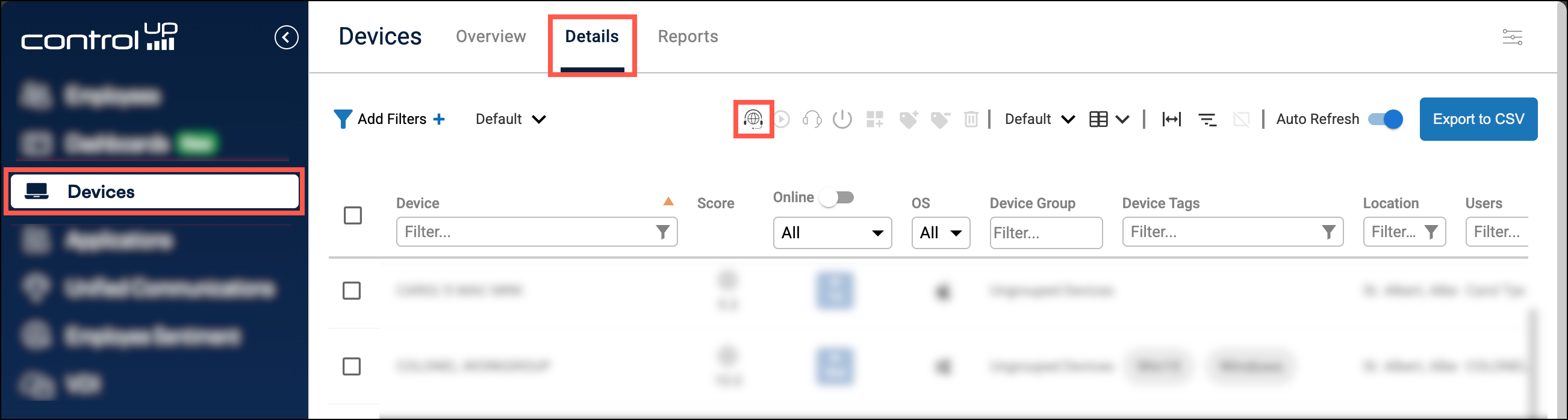
- In ControlUp, go to Devices > Details and click the Remote Control - Unmanaged icon.
- Select to start a session in either a new tab or new window.
- A window opens with the information you must send to the user whose device you want to control. You must send:
- A link to the website where the remote user can download the remote control application.
- The session code, which the remote user must enter into the application to establish the connection. Note that you can customize the expiry duration of the session code.
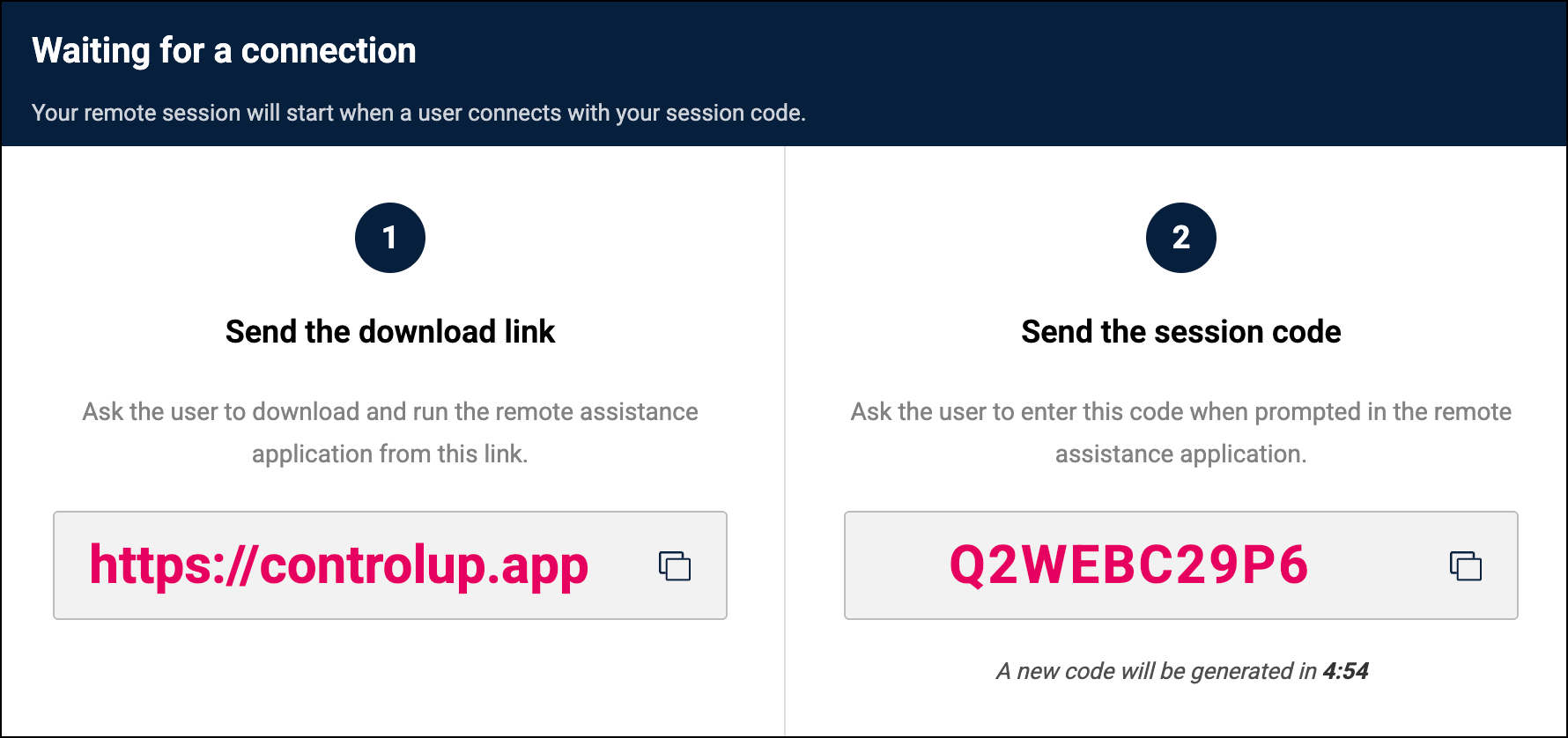
The remote session automatically starts when the remote user enters the session code into the remote control application.
From the remote user's perspective
The website link you send to the remote user already has instructions for downloading and running the application, and entering the session code to start the session. You can go there yourself to see how it looks - https://controlup.app
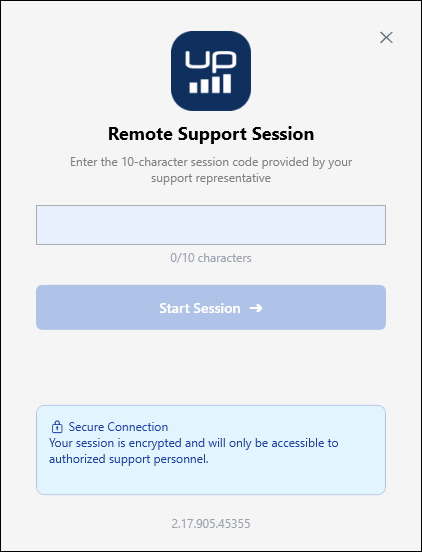
When the remote user runs the application, they see a message to let them know that the connection is secure:
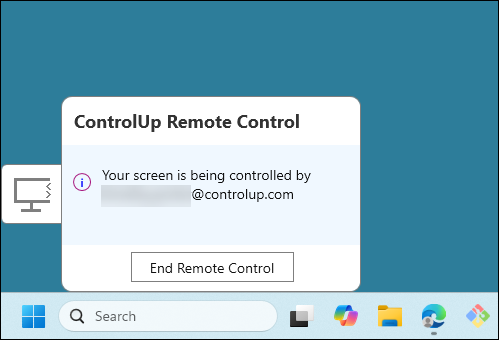
During the session, a remote control notification icon is displayed to let the remote user know their device is being controlled. Clicking the icon shows the email address of the IT administrator controlling the device, and allows the remote user to end the remote session.
Auditing
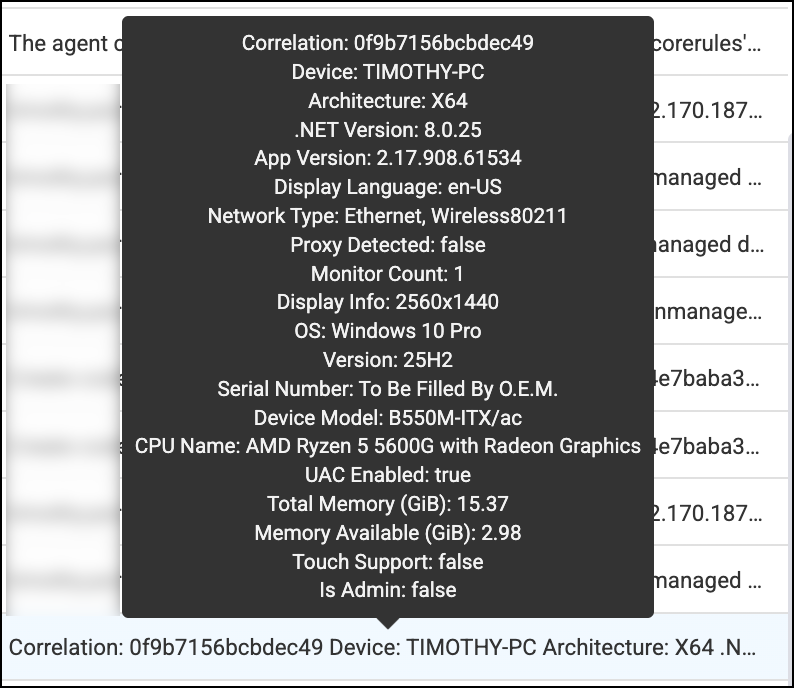
The Audit Log records when an administrator requests, starts, and ends a session. The name of the remote device is recorded in the Target field (UNMANAGED DEVICE - <Device Name>). Additional details from the device such as the OS, model, and CPU are recorded in the Description.
Note that for unmanaged devices, the audit log does not record actions performed during the session such as file transfer.
Customize the session code expiry duration
To adjust how long the session code is valid before a new one is generated, go to Devices > Configuration > Settings > Remote Control > Unmanaged Devices and move the slider to set a new duration.