This article covers how to record and analyze Windows events with ControlUp.
Event collection and recording
The ControlUp for Desktops Agent collects events and sends them to your tenant every minute. This means that there might be up to a one-minute delay between the event occurring on a device and the event appearing in ControlUp.
Events are recorded only if the agent is running at the time of the event. Events that occur when a device is starting might not be recorded because the agent is not yet running on the device.
Events recorded by default
The following events are always recorded:
System log 1074 - shutdown
Application log 1002 - application hang
Application log 1033 - MSI install
Application log 1034 - MSI uninstall
Application log 61002 - application not responding but recovers
Application log 61003 - application not responding and doesn’t recover
Application log 61004 - foreground application crash
Application log 61005 - windowed application crash
Application log 61006 - background process crash
Application log 61007 - application crash with an unknown state (foreground/background/windowed couldn’t be determined)
In addition, you will find some events pre-populated in your Windows Event Log collection settings.
Note that event ids 61002-61007 are generated by the ControlUp for Desktop Agent.
Configure a new event to be collected
Go to Devices > Configuration > Settings > Agent > Windows Event Log Collection.
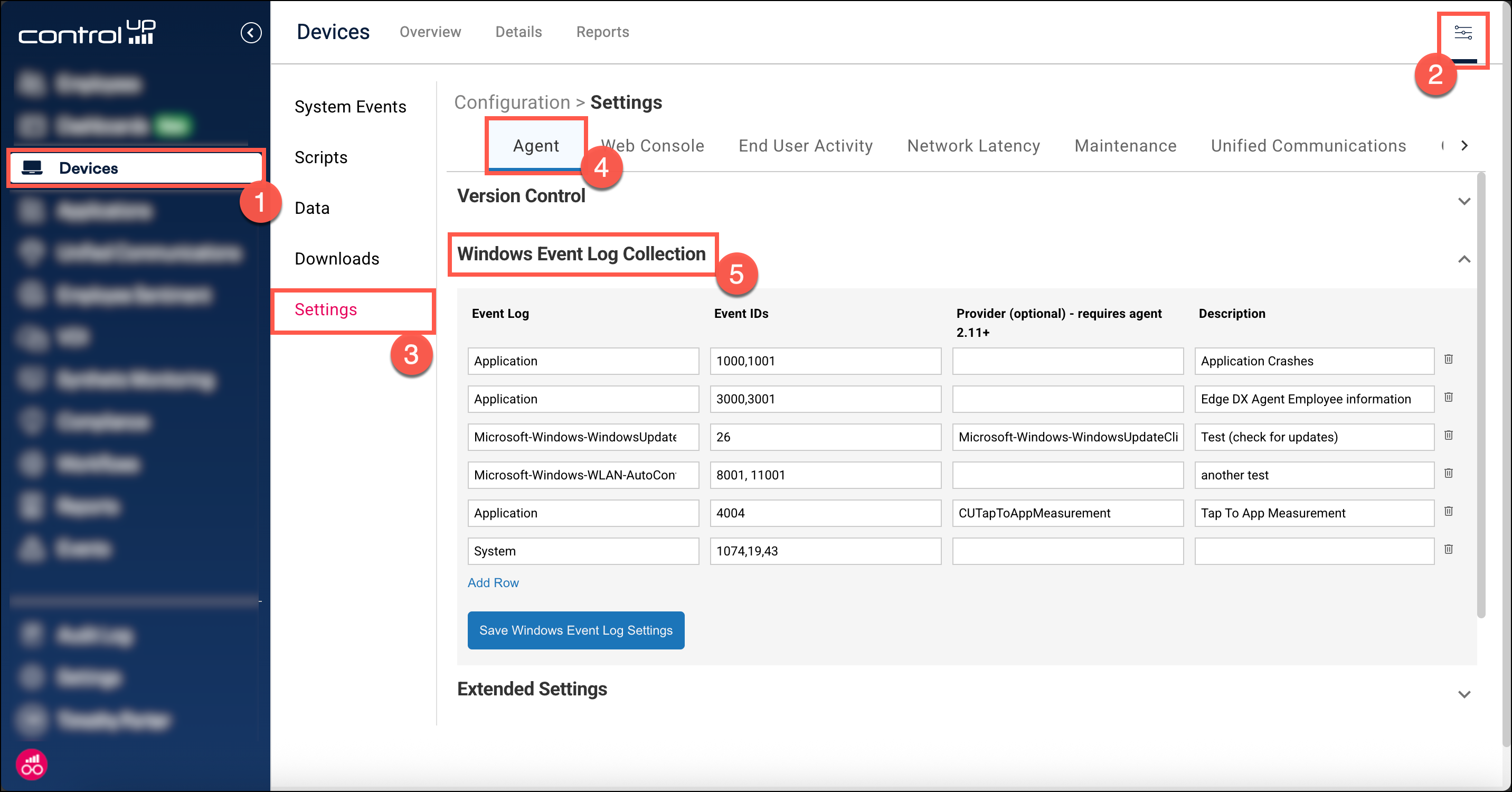
Click Add Row.
In the Event Log column, enter the full name of the event log in which the event is stored. You can select from the dropdown list or type in the event log name (for example,
Microsoft-Windows-WindowsUpdateClient/Operational)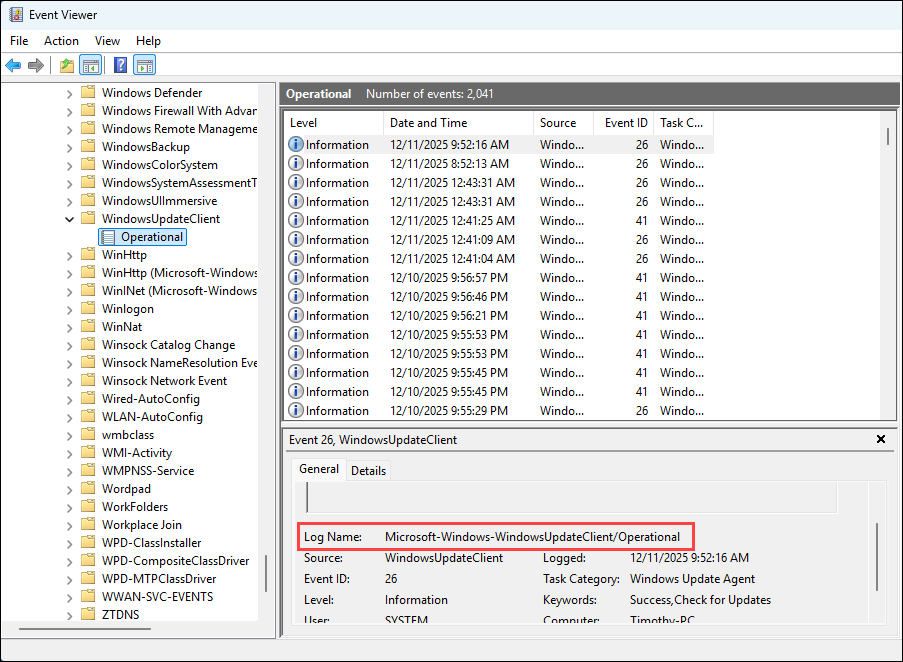
In the Event IDs column, enter a comma-separated list of event IDs that you want to record from the event log.
Optionally, if you want to collect events only from a specific provider, enter the provider name in the Provider column. To view the provider name of an event, right-click the event and go select Event Properties > Details. If you don't enter a provider, then events from all providers are recorded.

In the Description column, add a description to help you remember what the events mean. The description you enter doesn't appear anywhere else in ControlUp.
Click Save Windows Event Log Settings to save your changes.
The final event log collection entry should look like this:

After adding Windows events to the Windows Event Log Collection table, the agent will record future events meeting the conditions you specified. Changes to event log collection settings do not update historical data that was previously collected.
View recorded events
The Windows Event Log report shows all of the recorded events in your environment. To access the report, go to Devices > Reports > Windows Event Log.
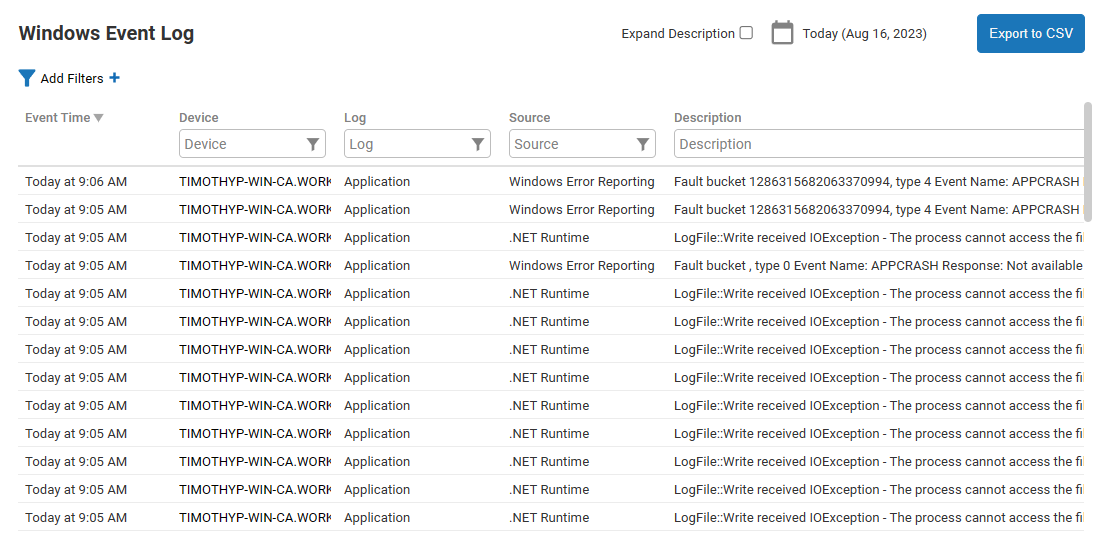
The report is built from the win_event_log data index. To view the raw data in the data index, go to Devices > Configuration > Data > win_event_log.
Set up alerts and automation based on events
You can use the win_event_log data index to create an automatic alert that triggers when a device has a specific Windows event. Learn how to create an alert from a data index.
Get Windows events by remote controlling a device
Another method to view events is to remote control into a device and view the events locally from the device. Learn more about remote control.
Get Windows events by running a acript on a device
You can run a script on a device to scrape for events matching the conditions specified in the script.
The following script returns events with ID 1030, 1031, or 1032 in the Application log in the last 96 hours. Edit the script to adjust the search criteria. Uploading data to the System Events log using SIP EVENT BEGINS has a limit of 4000 characters, so you might need to change MaxEvents in the script to a number lower than 20 if the output is greater than 4000 characters.
Add the script to ControlUp and run it as Custom Action - System on the target device. Learn how to add a custom scripts.
$EventList = Get-WinEvent -MaxEvents 20 -ErrorAction SilentlyContinue -FilterHashtable @{ LogName = 'Application'; StartTime = (Get-Date).AddHours(-96); Id = 1030,1031,1032 }

Write-Output "### SIP EVENT BEGINS ###"
Write-Output ($EventList.Length)
Write-Output ($EventList  | Format-List)
Write-Output "### SIP EVENT ENDS ###"