This article describes how ControlUp interacts with your Entra ID tenant to support signing into your ControlUp organization using OAuth.
Note
To sign in with Entra ID, make sure that Sign-in with Entra ID is enabled as a login method in your organization.
Signing in with OAuth requires a Service Principal (Enterprise Application) in your Entra ID tenant. Your administrators maintain full oversight and control over the Service Principal (such as restricting user access, or revoking consent) independently of the global App Registration.
Additional Entra ID integration
This article describes only the basic OAuth login requirements. ControlUp also has an Entra ID integration that uses a separate App Registration and allows automatic role assignment based on Entra ID group membership. Read Microsoft Entra ID Integration for details.
Creating the Service Principal and granting consent
There are three flows to create the Service Principal and grant consent:
Admin provides consent for all users - If an Entra ID admin signs in to ControlUp with OAuth and approves the consent prompt, the Service Principal is created and consent is automatically granted for all Entra ID users. This means that no other users will see the consent prompt when they sign in.
Each user provides their own consent - If no admin consent is provided, then each user must provide their own consent the first time they sign in with OAuth. The Service Principal is created on the first user’s consent. Subsequent users add their own
User.Readpermission grant to the existing Service Principal. You must configure Entra ID to allow users to grant the specific consent that ControlUp requires. Read How to allow users to provide their own consent for details.Admin creates the Service Principal with a script and manually grants consent - If you don’t want to create the Service Principal and grant consent through the GUI consent prompt when signing into ControlUp, an Admin can create the Service Principal with a script and manually add permissions. Note that Microsoft doesn’t allow you to manually create this Service Principal through their UI. In this flow, no users see any consent prompts. Read How to create the Service Principal with a script and manually grant permissions for details.
Service Principal details
The Service Principal is created with the following details:
Display Name - ControlUp Digital Experience Monitoring
Application ID - 2a6bd95d-d33e-44b4-b37a-a084bd3e1c88
Publisher - ControlUp Technologies
Required permissions
User.Read is the only permission required to be added to the Service Principal. It allows ControlUp to read basic user attributes such as the name and email address.
Note that when a user provides their own consent (instead of an admin), they must also approve offline_access to allow Entra ID to issue refresh tokens so the user stays signed in without re-authenticating. offline_access is handled at the token endpoint level and is never stored as a permission grant on the Service Principal. It is not required when an admin provides.
When reviewing permissions in Entra ID, you may see different Consent Types. If an administrator grants consent, the type is AllPrincipals (granted for the entire directory). If users consent individually, the type is Principal (granted only for that specific user).
How to allow users to provide their own consent
To configure Entra ID to allow users to consent to the required permissions:
Sign in to your Entra ID portal with a Global Administrator or Privileged Administrator user role.
Go to Entra ID > Enterprise applications > Consent and Permissions.
In User consent settings, make sure that users are allowed to consent for apps. Microsoft's recommended option is to allow users to consent only for permissions defined as "low impact".
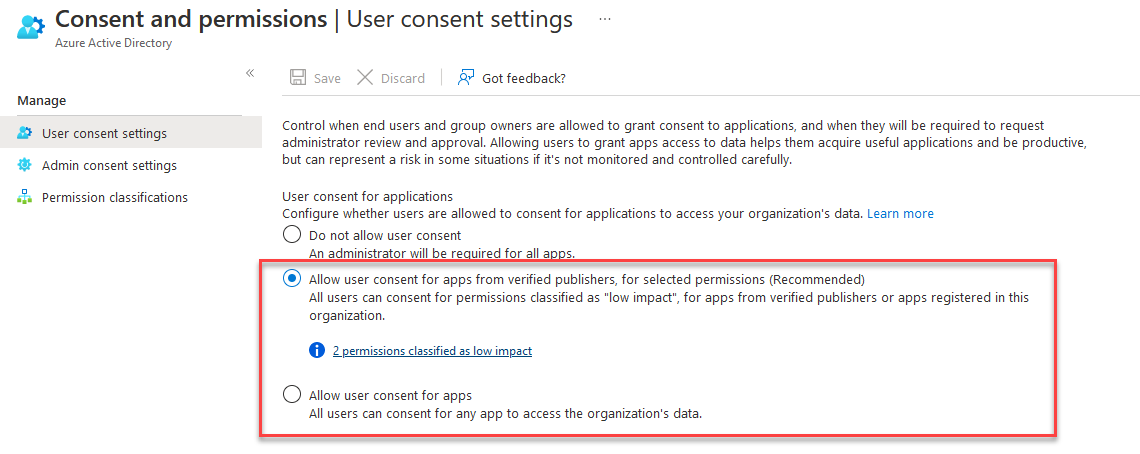
If you are allowing user consent only for low impact permissions, then you need to classify the required permissions as low impact.
Go to Permission classifications.
Select Low and add the following permissions from the Microsoft Graph API.
User.Read
offline_access
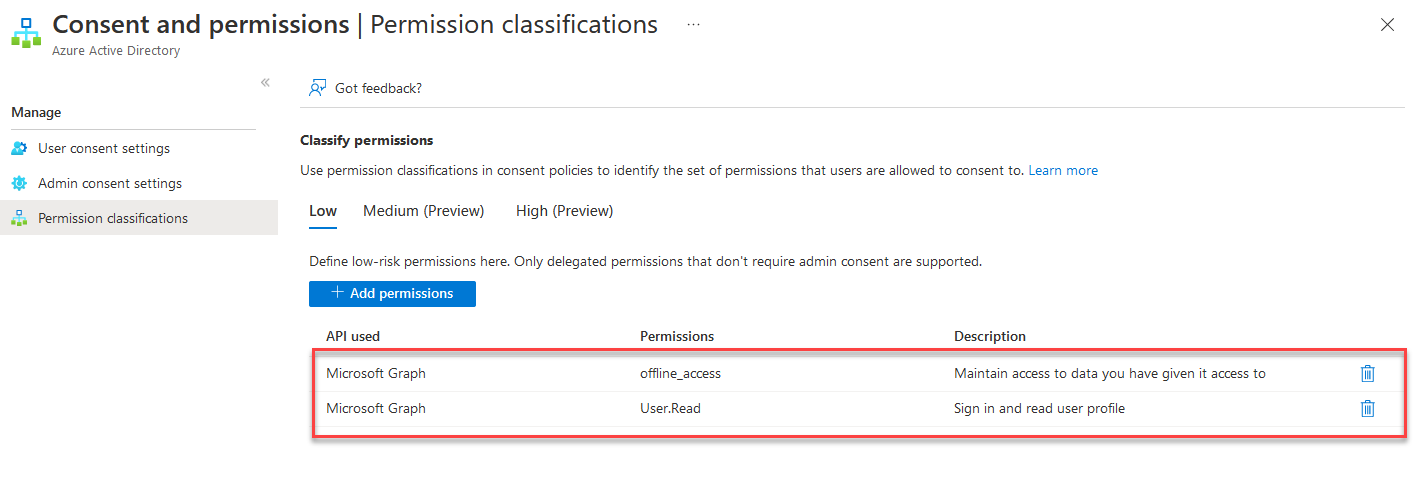
Save your changes in Entra ID.
How to create the Service Principal with a script and manually grant permissions
The Service Principal can be created using any of the following methods:
PowerShell
# Requires Application.ReadWrite.All scope on the admin's token (temporary, expires in ~1 hour)
Invoke-RestMethod -Method POST -Uri "https://graph.microsoft.com/v1.0/servicePrincipals" `
    -Headers $headers -Body '{"appId":"2a6bd95d-d33e-44b4-b37a-a084bd3e1c88"}'
Azure CLI
az ad sp create --id 2a6bd95d-d33e-44b4-b37a-a084bd3e1c88Graph Explorer
POST /v1.0/servicePrincipals
Body: {"appId":"2a6bd95d-d33e-44b4-b37a-a084bd3e1c88"}
These methods only create the Service Principal. You must manually add User.Read afterwards by going to Entra ID > Enterprise Applications > search "ControlUp Digital Experience Monitoring" > Permissions > "Grant admin consent for [tenant]"
Note on Application.ReadWrite.All
All three methods require this scope, even though you're only creating the Service Principal and not granting any permissions.
POST /servicePrincipalsis a write operation to the tenant's application directory, and Microsoft requiresApplication.ReadWrite.Allfor it. There is no lighter-weight scope available. For Azure CLI, the admin running it needs Global Administrator or Cloud Application Administrator role, which implicitly has this access. For PowerShell and Graph Explorer, the scope is requested as a temporary delegated permission on the admin's access token. It is not a permission being granted to ControlUp or any app. The token expires in ~1 hour. Per Microsoft's API reference (https://learn.microsoft.com/en-us/graph/api/serviceprincipal-post-serviceprincipals), this is the minimum required scope.