Click here to watch our Academy training video about Templates.
If you aren't already familiar with ControlUp for Compliance Templates, read How to use Templates first.
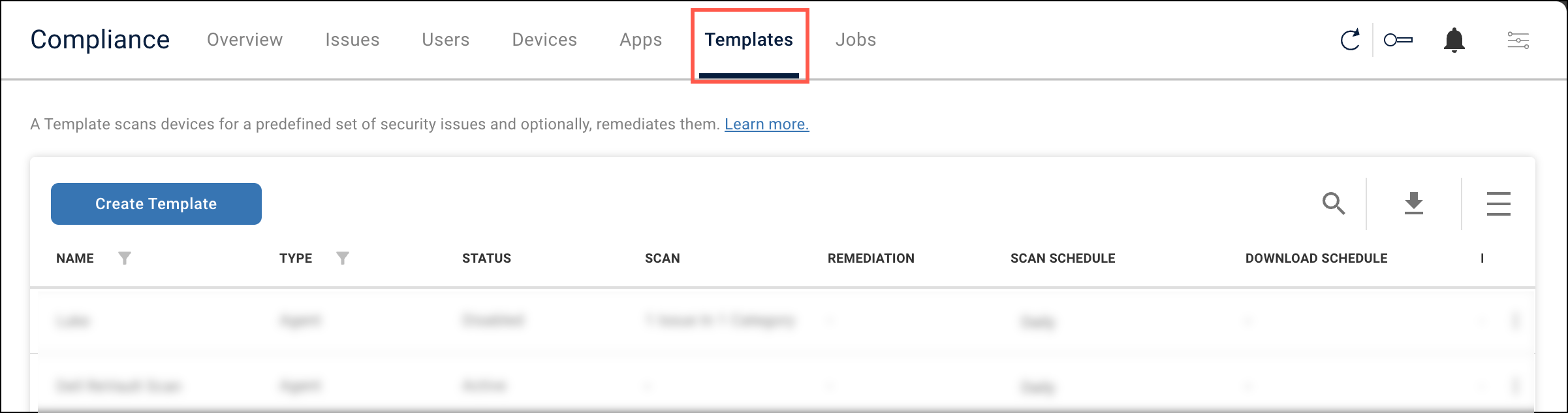
To view your existing Templates, go to the Templates tab.
Create a Template
Click Create Template to open the Template creation wizard. If you don't want to start from scratch, you can click the three dots menu next to an existing Template and Duplicate it.
1 - Create Template
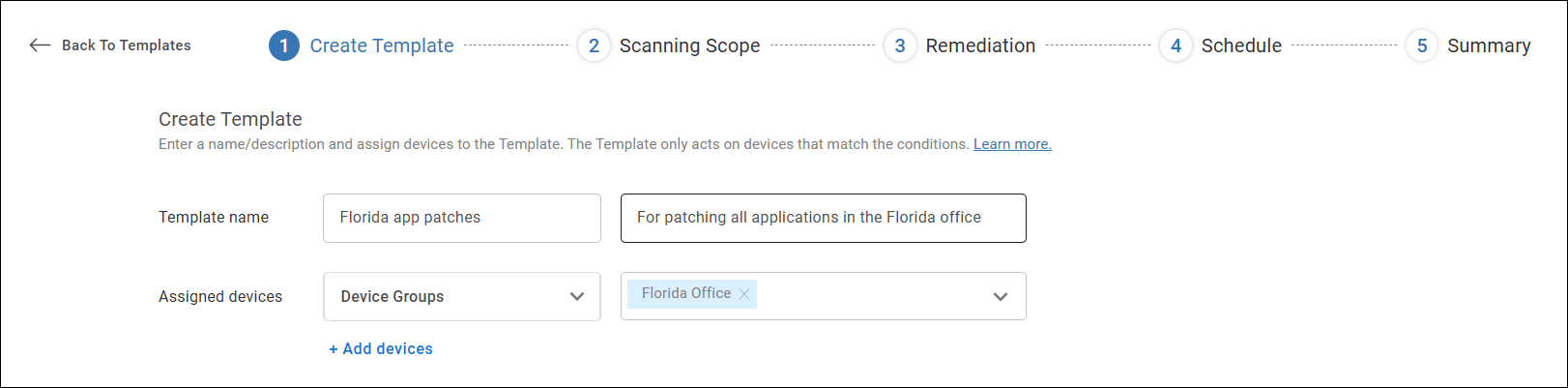
In this step, give the Template a name and description, and select which devices you want the Template to run on. You can target devices by operating systems or device groups/tags.
2 - Scanning scope
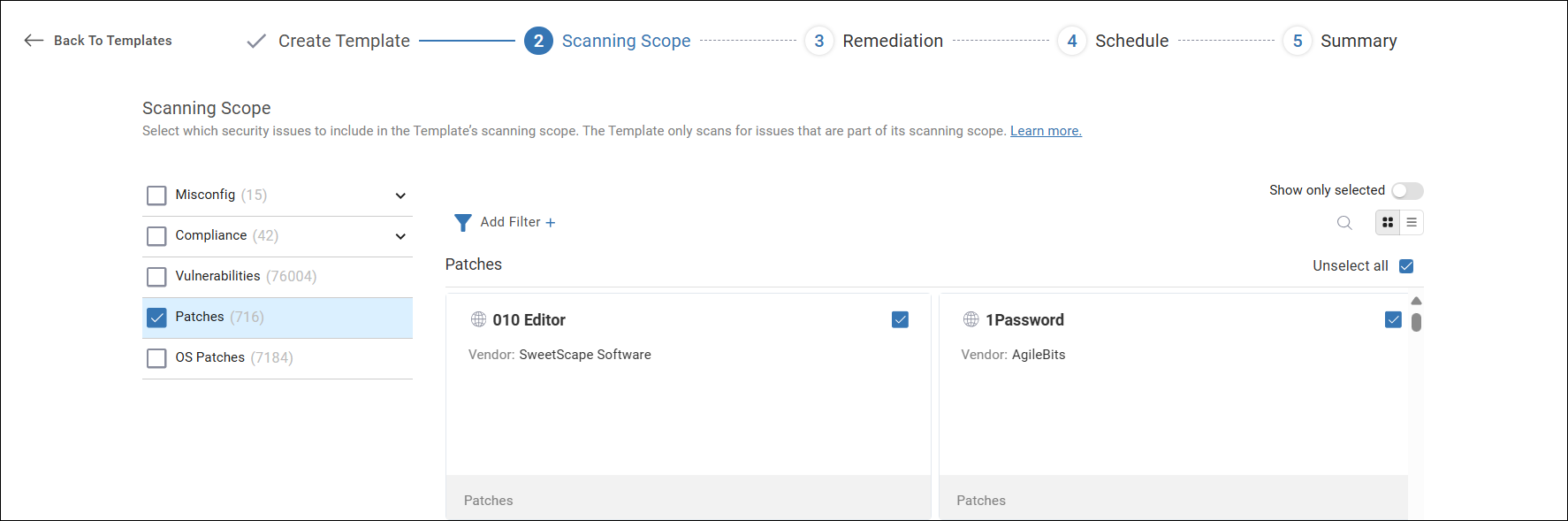
Select which issues to add to the Template's scanning scope. These are the issues that the Template scans for and detects. For details about each type of issue, Learn more about each issue categoty.
If you select all issues from a certain category, then all issues added to that category in the future are automatically included in your Template.
3 - Remediation
If you want the Template to automatically remediate detected security issues, enable Auto Remediation, and select which issues you want to remediate.
If you select to remediate all issues from a certain category, then all issues added to that category in the future are also automatically remediated.
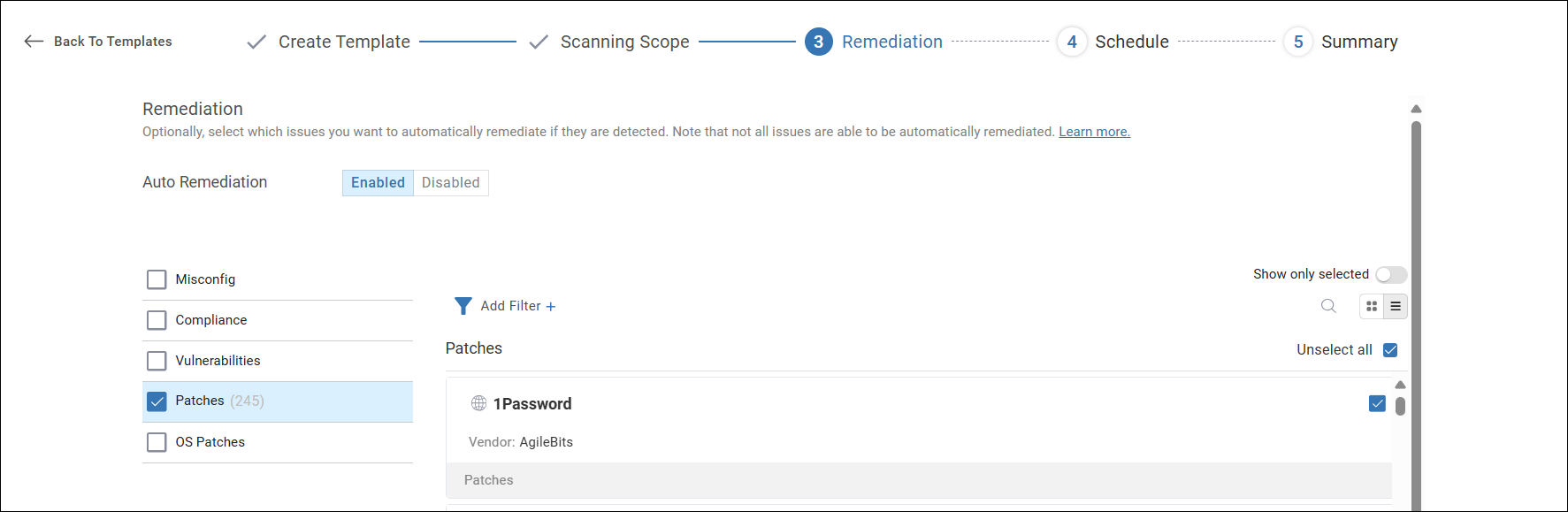
Note that not all issues have an available remediation. If you added an issue to the Template's scanning scope, but don't see it available in the Remediation tab, that means ControlUp doesn't have a built-in remediation available. If you are aware of a way to remediate the issue or a workaround, you can add a custom remediation action.
If you choose not to enable Auto Remediation, you can manually initiate the remediation action from ControlUp later by creating a Job.
4 - Schedule
For more details about how scheduling works in ControlUp for Compliance, read Scheduling.
Set the schedule for when the Template scans and remediates devices.
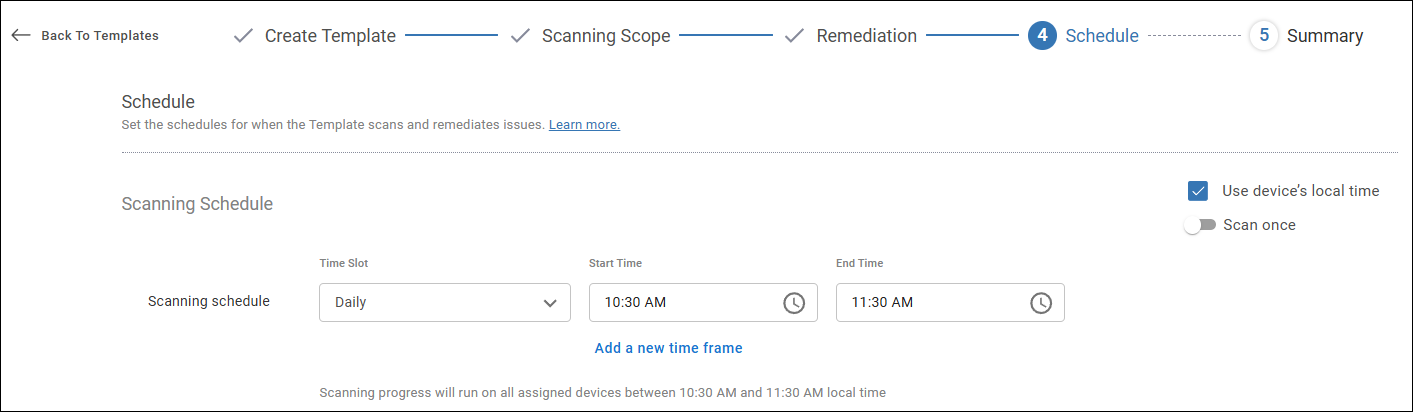
Under Scanning Schedule, enter one or more time frames for when the Template scans devices. If you enable Scan once, then the Template scans each device only once, instead of repeating the scan on the set interval.
Under Remediation Schedule, set when the Template remediates detected issues.
- If remediation schedule is set to Immediately, then the Template remediates an issue as soon as it is detected on a device.
- If remediation schedule is set to Scheduled, then the Template remediates issues at a scheduled time after the issue was detected. You can set a different schedule for each issue category. Additionally, for application and OS patches, you can set different schedules for patch downloads and patch installation. For example, you might want to remediate compliance issues immediately, but wait until after business hours to download and install patches.
Device and application restart behavior
ControlUp can automatically restart a device or close an application when required to install a patch. You can customize the behavior of this feature to ensure timely patching while minimizing user interruption.
For details and examples, read Automatic Device Reboots and Application Closures
Send a custom message
A Template can send a custom message to devices according to a schedule. For example, you might want to notify users that their device is about to be scanned or remediated.
To send a user message, enable User Message and enter a message and schedule. Learn how to define a schedule.
5 - Summary
Before you save the Template, review the information in the Summary page.
Template management actions
Click the three-dots menu in a Tempate's row on the Templates page to perform the following actions:
- Edit
- Disable - Temporarily stops the Template from running or performing any actions. The Template resumes only when you enable it again.
- Delete
- Duplicate
- Pause - Temporarily stops the Template from running or performing any actions for a set period of time. The Template automatically resumes when the pause period has ended.