-
The first time you open ControlUp for Apps, an onboarding checklist guides you through the initial setup. Use this article to deploy the ControlUp for Apps module and browser extension on macOS devices.
-
For Windows deployment instructions, see Deploy ControlUp for Apps.
ControlUp for Apps collects web application data from supported macOS devices using the following components:
- ControlUp for Apps module: An add-on for the ControlUp for Desktops Agent that runs on the device.
- ControlUp for Apps browser extension: Required for capturing web application usage and experience metrics from supported browsers.
macOS deployment depends on how your Mac devices are managed. Use the unmanaged deployment path only for Mac devices that are not managed by Mobile Device Management (MDM). If the device is managed by an MDM solution, use the MDM-managed deployment path.
Prerequisites
Read ControlUp for Apps Overview for general prerequisites.
For macOS deployment, make sure that:
- The macOS device has ControlUp for Desktops Agent version 2.18 or higher installed.
- The macOS device can receive the supported ControlUp for Apps module version available for your tenant.
- Employees access monitored applications with Google Chrome or Microsoft Edge.
- For unmanaged Mac devices, the device can access the official Chrome and Edge web stores.
- For MDM-managed Mac devices, you can deploy browser extension configuration profiles through your MDM tool, such as Jamf, Microsoft Intune, or Kandji.
Deployment Instructions
To access deployment settings, go to Settings > Applications.
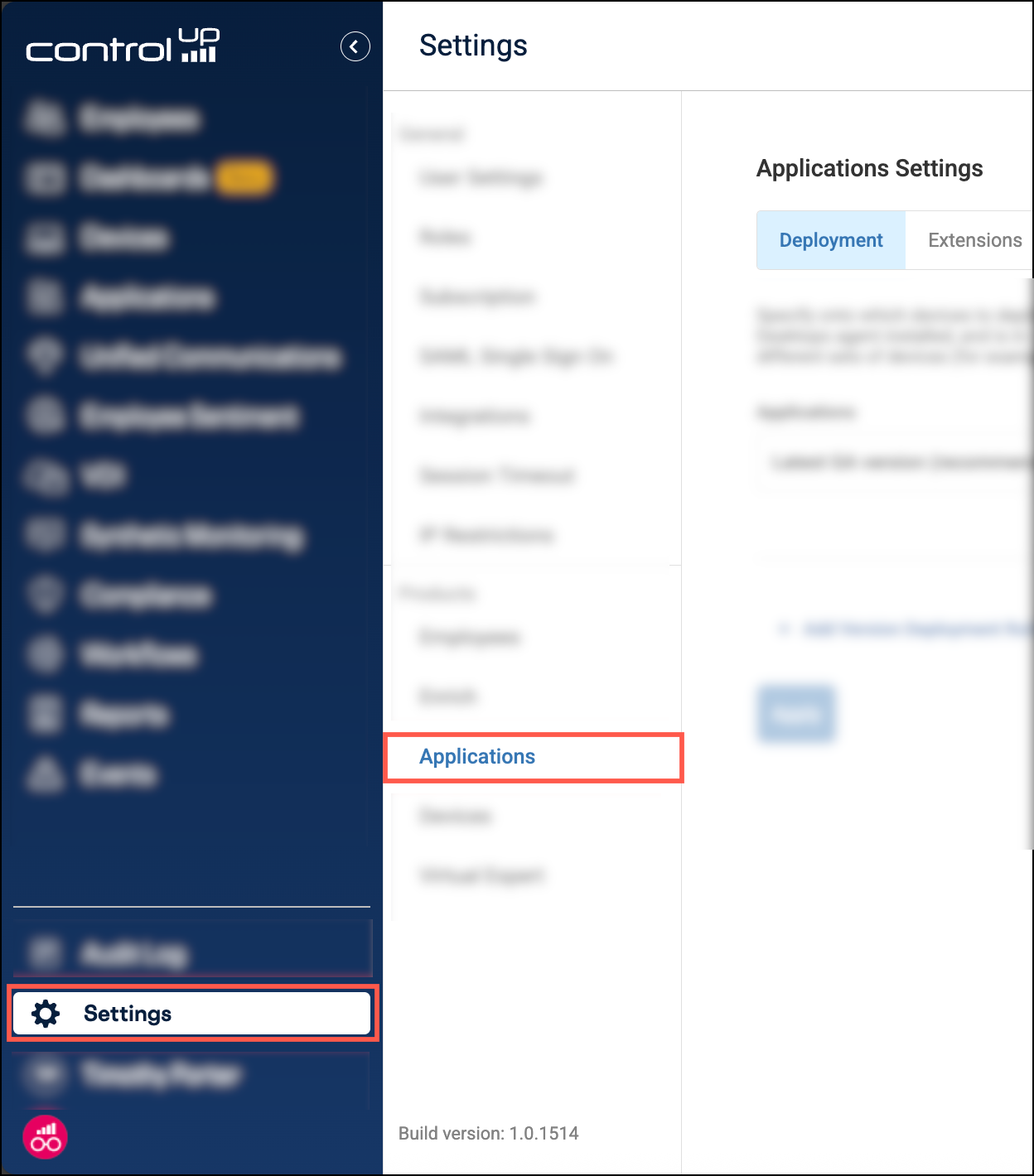
Deploy the ControlUp for Apps Module
- Select the Deployment tab.
- Add or edit a deployment rule.
- Set Platform to macOS.
- In Version, select the supported macOS version available for your tenant.
- Select the target device groups or device tags. To learn how to create and manage them, see Organize Devices with Groups and Tags.
- Click Apply.
The selected version is installed on macOS devices that match the selected device groups or device tags.
Deploy the Browser Extension
Browser extension deployment for macOS depends on how your Mac devices are managed:
- Unmanaged Mac Devices: Deploy the browser extension from the official Chrome and Edge web stores.
- MDM-Managed Mac Devices: Use your MDM tool to deploy the browser extension.
The ControlUp CDN is not supported for macOS.
Unmanaged Mac Devices
Platform targeting requires ControlUp for Apps module version 1.5 or higher. Devices running earlier versions continue to use the previous extension deployment behavior.
- Select the Extensions tab.
- Add or edit an extension deployment rule.
- Under Platform, select macOS.
- Set Browser extension deployment to Automatically install via Web Store.
- Select the target device groups or device tags.
- Under Targeted browsers, select Google Chrome, Microsoft Edge, or both.
- Click Save changes.
- Ask users to log off and log back in for the extension to become operational.
ControlUp deploys the browser extension from the official Chrome and Edge web stores.
MDM-Managed Mac Devices
For MDM-managed Mac devices, deploy the browser extension through your MDM tool. You do not need to create a separate extension deployment rule in ControlUp.
- Deploy the required browser extension configuration profiles through your MDM tool.
- Ask users to log off and log back in after the ControlUp for Apps module and browser extension configuration are deployed.
The browser extension deployed through your MDM tool gets its configuration from the ControlUp for Apps module running on the device.
Post-Deployment Verification
After users log back in, verify that the browser extension is communicating with the local ControlUp for Apps module.
Open the extension UI from the browser. Online indicates that the browser extension is connected to the local module.
.png)
After employees access monitored App Groups from Google Chrome or Microsoft Edge, macOS data appears in ControlUp for Apps.
Troubleshooting
If macOS data does not appear in ControlUp for Apps, check the following:
-
Module deployment
- The device matches the macOS deployment rule.
- The ControlUp for Apps module is installed.
-
Browser extension deployment
- For unmanaged Mac devices:
- ControlUp for Apps module version 1.5 or higher is installed.
- The device matches the intended extension deployment rule.
- Platform includes macOS.
- Browser extension deployment is set to Automatically install via Web Store.
- Google Chrome or Microsoft Edge is included under Targeted browsers.
- For MDM-managed Mac devices:
- The browser extension is deployed through your MDM tool. See MDM Policy Verification.
- For unmanaged Mac devices:
-
Connection
- The user logged off and logged back in after deployment.
- The browser extension UI shows Online.
Enable Logs for Troubleshooting
If you encounter deployment issues or communication errors, ControlUp Support might ask you to enable diagnostic logs.
- Go to Settings > Applications.
- Select the Advanced tab.
- Under Save logs, select Yes.
After logging is enabled, diagnostic logs are saved locally on the macOS device in the following folder:
/usr/local/com.controlup.edgedx.agent/Modules/appdx/logs
Copy the log files from this folder and provide them to ControlUp Support upon request.
MDM Policy Verification
For MDM-managed Mac devices, verify in your MDM tool that the browser extension configuration profile was deployed to the target devices.
You can also verify that the browser received the extension policy:
- In Google Chrome, open
chrome://policy. - In Microsoft Edge, open
edge://policy.
If the extension is installed but does not communicate with the local module, contact ControlUp Support.