This product requires the Apps add-on for ControlUp for Desktops Advanced or a ControlUp ONE license. Visit the Pricing page for details.
ControlUp for Apps monitors the performance and availability of SaaS and web applications based on real user data. All data is collected from the client side, which means you can deploy ControlUp for Apps components in just a few clicks and start seeing data right away. You don't have to deploy or set up anything on the application side.
Each monitored app group is assigned a score, giving you an at-a-glance view of how the applications your organization uses are performing. If an app group has a low score, you can drill down to better understand what might be affecting the employee experience.
Prerequisites
Devices and Agents
- Windows: ControlUp for Desktops Agent version 2.16 or higher.
- IGEL OS 12: ControlUp for Desktops Agent version 2.17.2 or higher.
- macOS: ControlUp for Desktops Agent version 2.18 or higher.
Browsers
- Windows: Microsoft Edge, Google Chrome, and Island. Note that Island is supported only for Windows devices.
- IGEL OS 12: Microsoft Edge and Google Chrome.
- macOS: Microsoft Edge and Google Chrome.
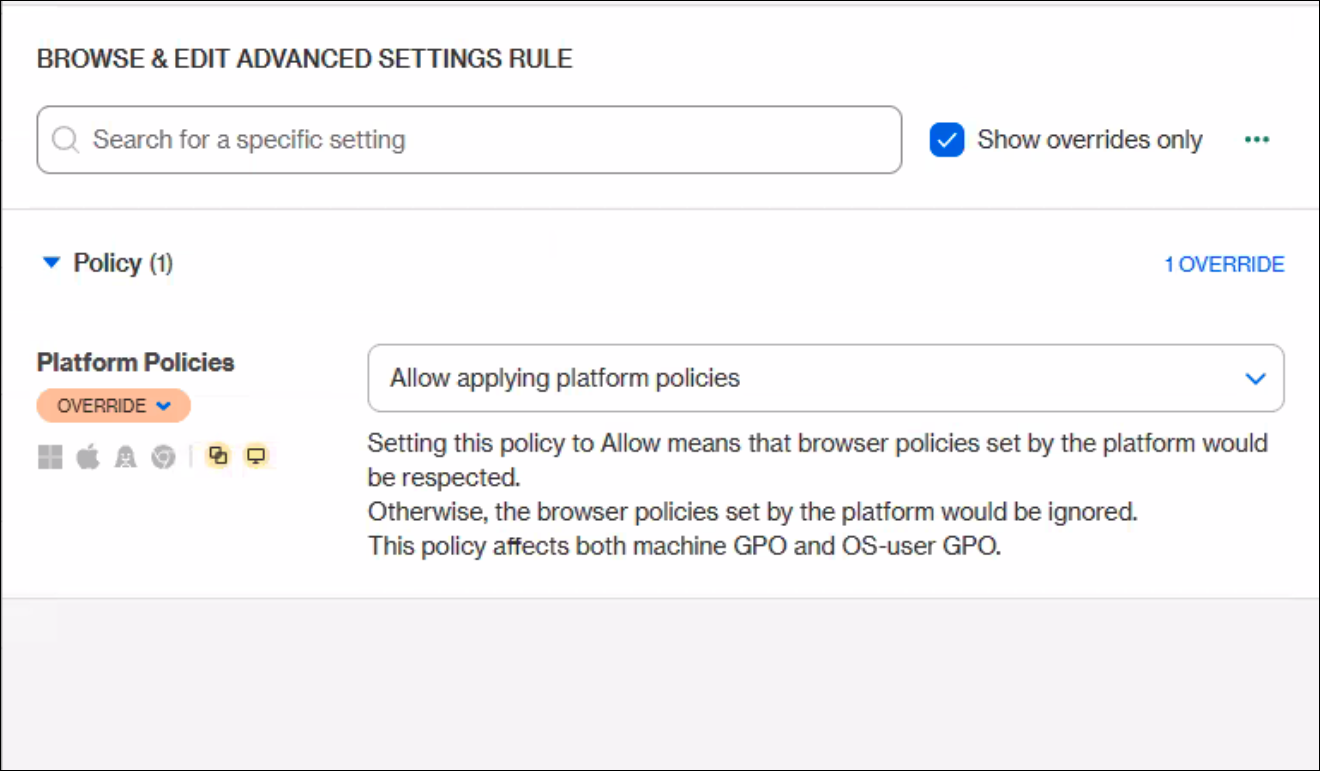
The browser extension for Island requires the following policy to be set in the Island Management Console. Contact ControlUp Support for more assistance.
Networking
Make sure devices can access the required extension deployment URLs. The required URLs depend on the deployment method.
To deploy the browser extension from the ControlUp CDN, devices must have access to:
- Edge/Island:
https://edgedx.blob.core.windows.net/artifacts/appdx/latest/appdx_edge.crxhttps://downloads.sip.controlup.com/appdx/latest/appdx_edge.xml
- Chrome:
https://edgedx.blob.core.windows.net/artifacts/appdx/latest/appdx_chrome.crxhttps://downloads.sip.controlup.com/appdx/latest/appdx_chrome.xml
To deploy the browser extension from the official Chrome and Edge web stores, devices must have access to:
-
Edge:
https://edge.microsoft.com/extensionwebstorebase/v1/crx
-
Chrome/Island:
https://clients2.google.com/service/update2/crx
For unmanaged macOS devices, use web store deployment. Local installation from the ControlUp CDN is not supported for macOS.
Permissions
- To configure and deploy ControlUp for Apps, you must have Configure ControlUp for Apps.
- To use ControlUp for Apps, you must have Access ControlUp for Apps.
Settings
- End User Activity monitoring must be enabled. No additional configuration in the End User Activity settings page is required.
How to Get Started
Sign into ControlUp and go to Applications to get started. The first time you open ControlUp for Apps, an onboarding wizard walks you through how to get started. Follow the instructions in the wizard.
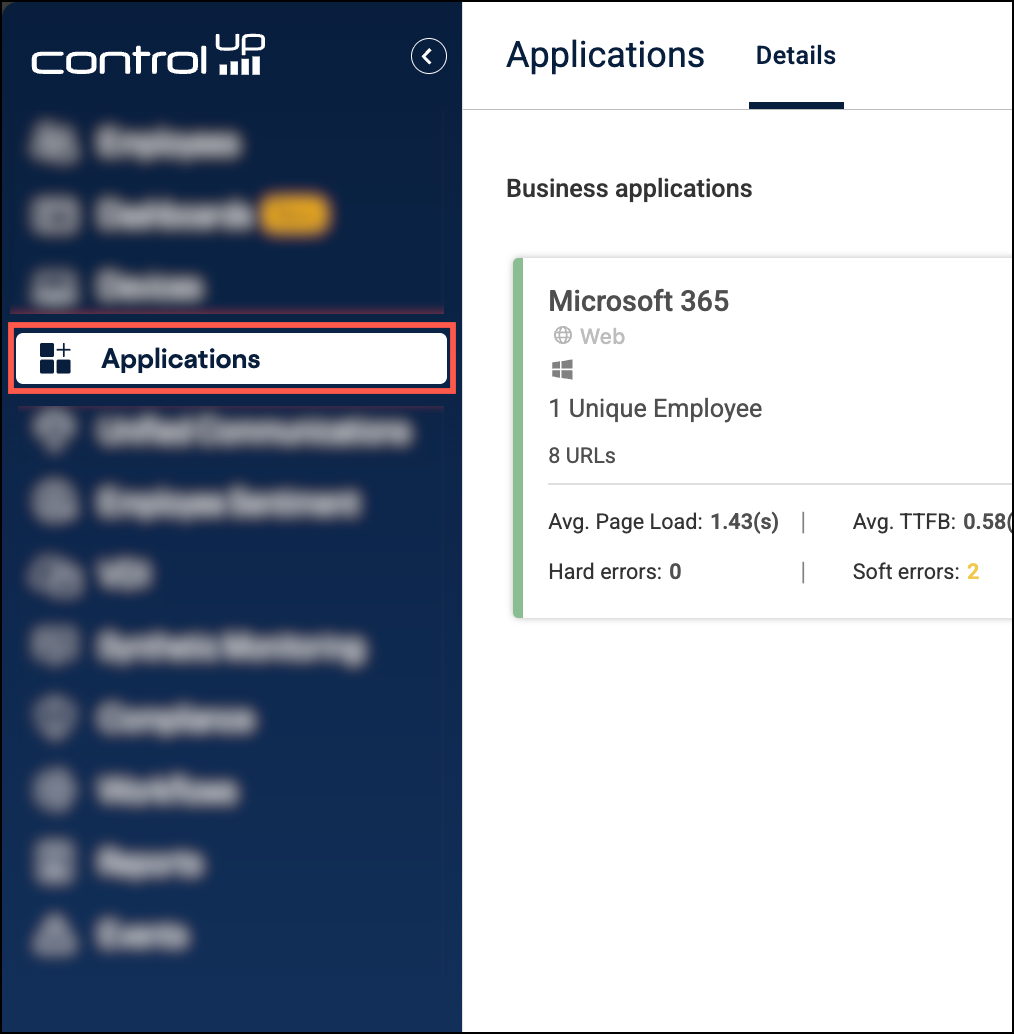
If you decide to skip the onboarding wizard, or if you want to go over the setup again, perform the following steps:
Deploy ControlUp for Apps Components
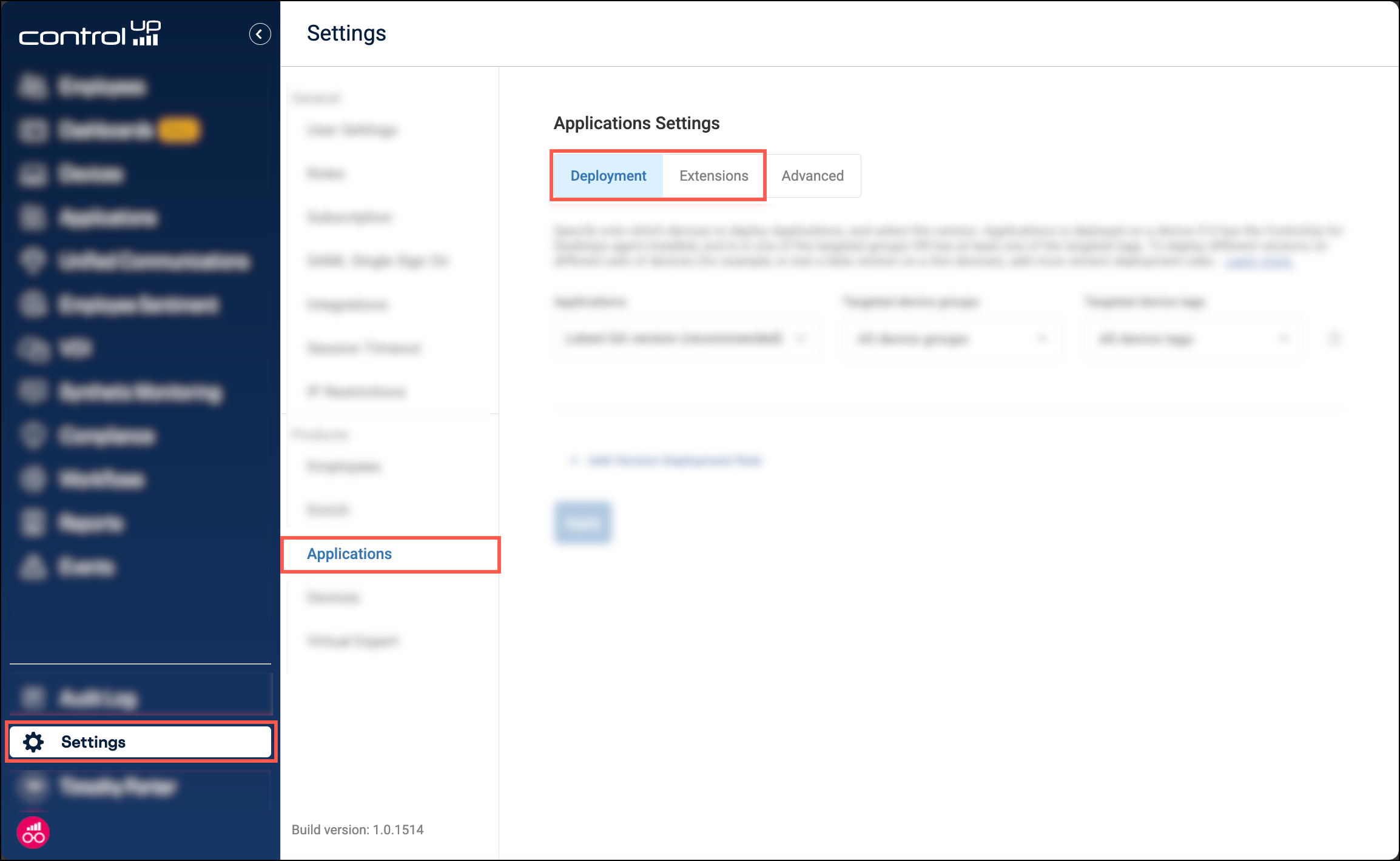
You must deploy the ControlUp for Apps module and browser extension to your supported devices. To configure deployment settings, go to Settings > Applications and use the Deployment and Extensions tabs.
For deployment instructions, see:
Create Monitored App Groups
You must configure which web applications to monitor with ControlUp. A website is monitored only if it is in an app group, and the app group is enabled for ControlUp for Apps. An app group is a collection of URLs representing a single SaaS or web application.
To create an app group, go to Settings > Employees > App groups. Read App Groups and Profiles for details.
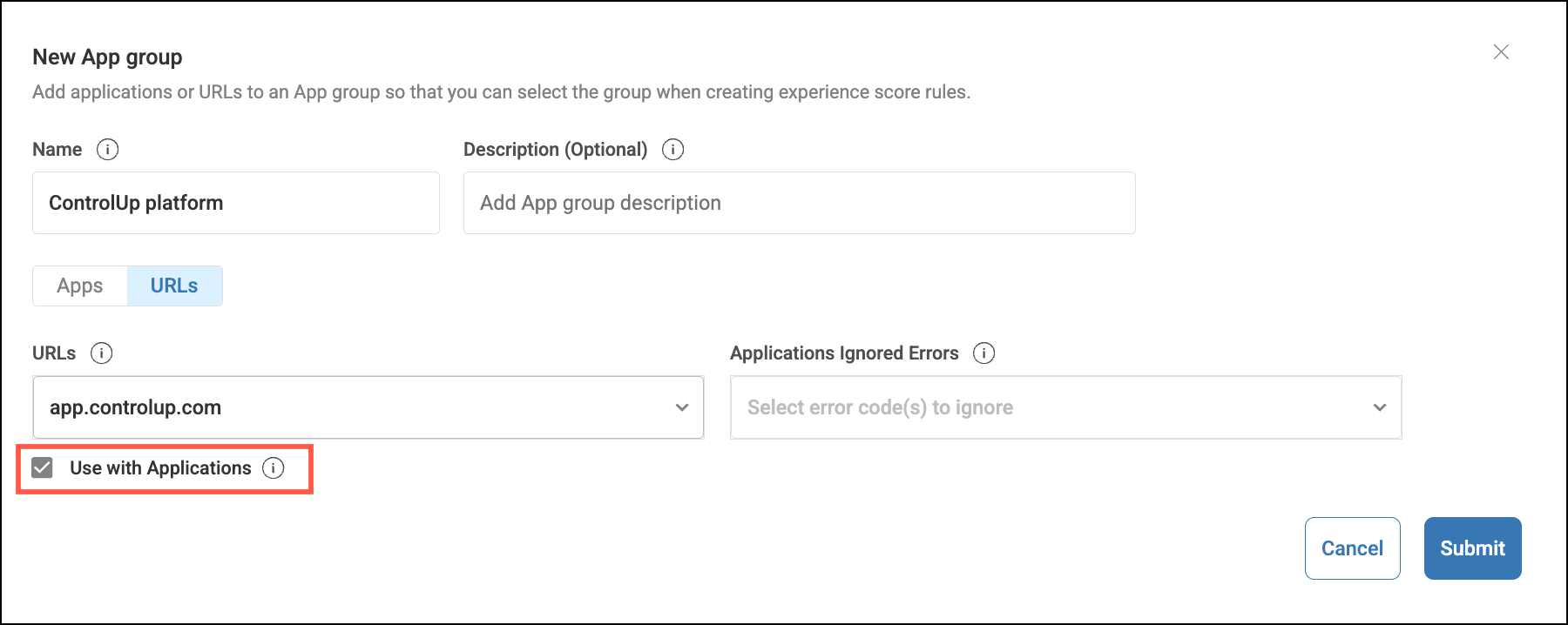
You must configure which web applications to monitor with ControlUp for Apps. A website is monitored only if its URL is part of an app group, and the app group is enabled for ControlUp for Apps. An app group defines the URLs that belong to a single SaaS or web application.
To create an app group, go to Settings > Employees > App Groups. For details, see App Groups and App Score.
Start Seeing Data
As employees use applications that are in a monitored app group, data appears in ControlUp for Apps. The Details tab shows all app groups that were used within the selected time period.
Click an app group to see detailed metrics. Metrics are divided into two main categories:
- Experience: Performance and availability data based on page load time, time to first byte, and errors. For details, see Application Experience.
- Usage: Helps you understand application usage broken down by browser, network connection type, different pages of the application, location, etc. Read Application Usage for details.