-
The first time you open ControlUp for Apps, a setup wizard walks you through the deployment steps. Follow the instructions in the wizard or use this article to deploy ControlUp for Apps on Windows devices.
-
For macOS deployment instructions, see Deploy ControlUp for Apps on macOS.
ControlUp for Apps collects web application data from supported Windows devices using the following components:
- ControlUp for Apps module: An add-on for the ControlUp for Desktops Agent that runs on the device.
- ControlUp for Apps browser extension: Required for capturing web application usage and experience metrics from supported browsers.
You can configure deployment rules to target specific platforms, device groups, and device tags. This lets you apply different deployment settings to different sets of devices.
Prerequisites
Read ControlUp for Apps Overview for prerequisites.
Deployment Instructions
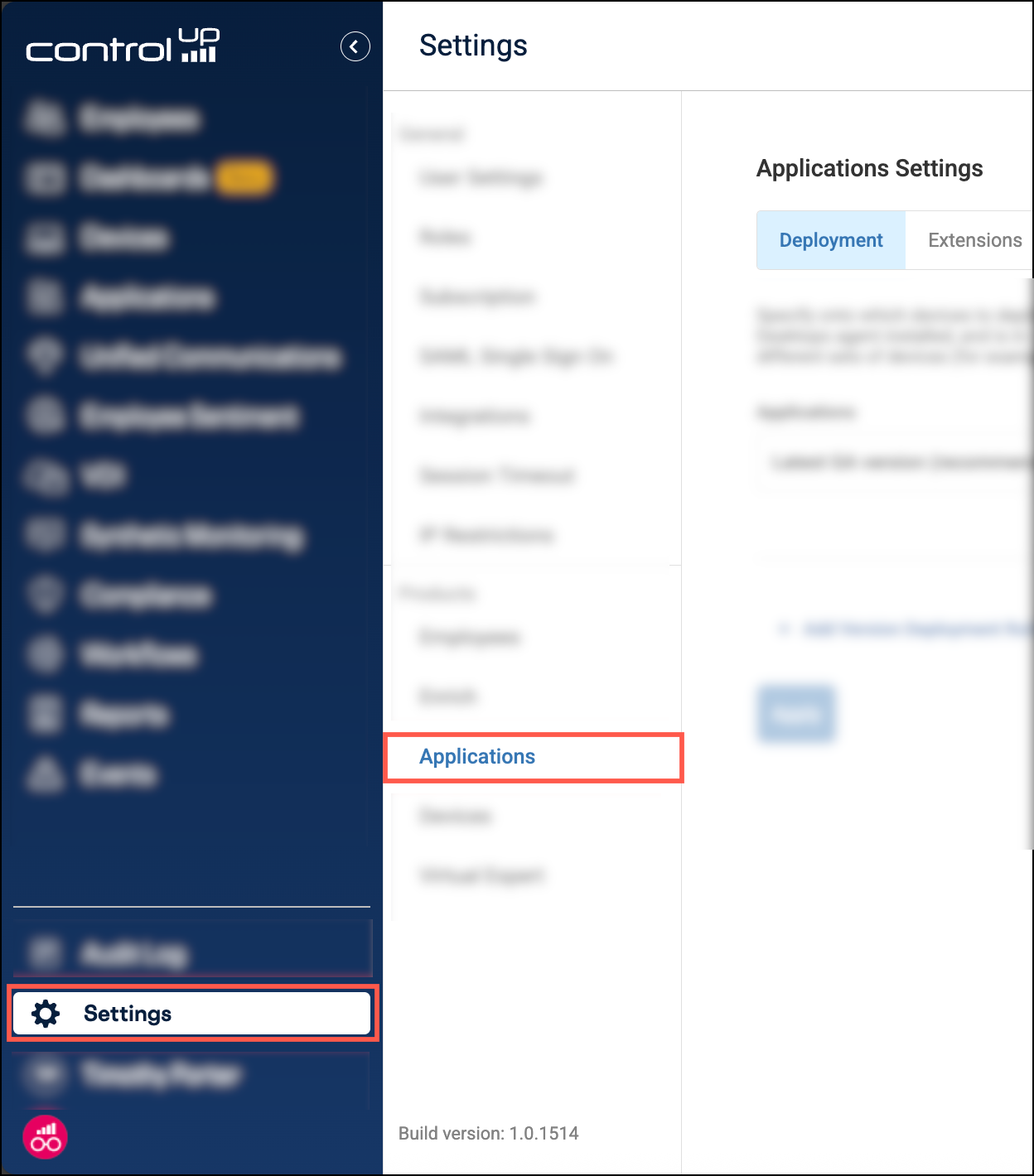
To access deployment settings, go to Settings > Applications.
How Deployment Rules Work
You can add deployment rules to control which module version or browser extension settings apply to different devices.
Rules are evaluated from top to bottom:
- The first rule a device matches is the only rule applied to that device.
- Rules do not stack.
- Place specific, limited-scope rules at the top and broader fallback rules below them.
Deploy the ControlUp for Apps Module
- Select the Deployment tab.
- Add or edit a deployment rule.
- Set Platform to Windows.
- In Version, select the module version to deploy.
- Select the target device groups or device tags. To learn how to create and manage them, see Organize Devices with Groups and Tags.
- Click Apply.
The selected version is installed on Windows devices that match the selected device groups or device tags.
Recommendation: To install the module on all your Windows devices and automatically keep it updated, select Latest GA version (recommended) and target All device groups / All device tags.
Deploy the ControlUp for Apps Browser Extension
Under the Extensions tab, configure how the browser extension is deployed. The extension is installed only on devices that already have the ControlUp for Apps module installed.
Platform targeting requires ControlUp for Apps module version 1.5 or higher. Devices running earlier versions do not honor the Platform selection and continue to use the previous extension deployment behavior.
You can configure the following settings:
-
Platform: Select Windows to target Windows devices. You can select multiple platforms in a rule if they use the same deployment settings. CDN deployment is not supported on macOS.
-
Browser extension deployment: Select one of the following:
- Automatically install via CDN: Install the extension from the ControlUp CDN.
- Automatically install via Web Store: Install the extension from the official Chrome and Edge web stores.
- Do not install: Prevent ControlUp from installing the extension. Use this option if you manage extension deployment through GPO. See Manually Deploy Extensions With GPO.
Deployment from the web store requires ControlUp for Apps module version 1.3 or higher. Devices running an older version always use the ControlUp CDN for extension deployment, regardless of how you configure this setting. See Deploy the ControlUp for Apps Module to learn how to ensure you are running the latest module version.
The browser extension is unlisted on the web stores. It cannot be found through manual search. It can be deployed through the ControlUp UI or enterprise browser policies such as GPO.
-
Targeted device groups and Targeted device tags: Select the device groups or device tags to which the deployment rule applies.
-
Targeted browsers: Select which browsers to install the extension on.
If you create multiple rules for the same platform, use device groups or device tags to distinguish their targets. Place more specific rules above broader rules.
Click Save changes to save your extension deployment settings.
Extension UI
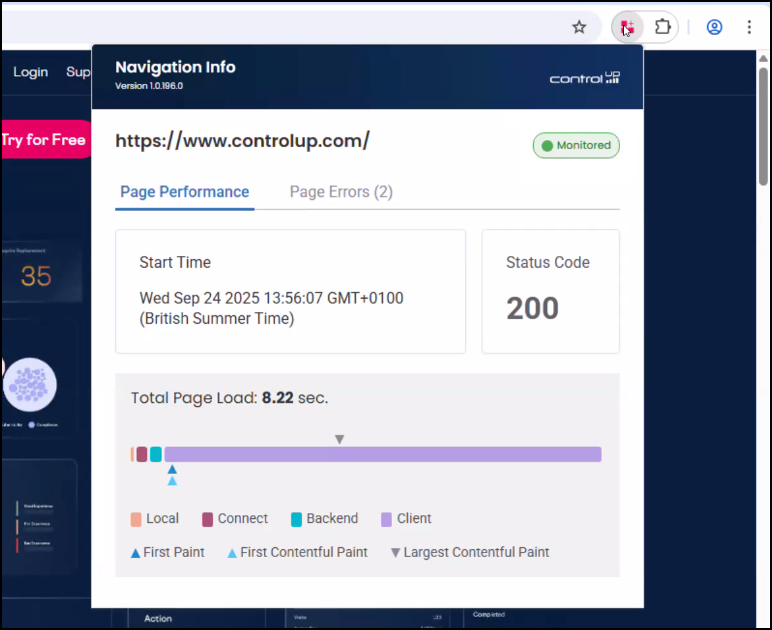
The extension UI allows end users to view their own page load metrics by clicking the extension icon. Configure whether to allow the extension UI on all devices, only certain devices, or no devices.
Extension deployment settings require ControlUp for Desktops version 2.17.7+ and ControlUp for Apps module version 1.2.x+.
If devices are running older versions:
- The top-most rule always applies regardless of targeting scope.
- The extension is installed on all browsers regardless of your selection.
Manually Deploy Extensions With GPO
If you prefer to manage extensions through Group Policy instead of allowing ControlUp to handle deployment, configure an extension deployment rule for Windows and set Browser extension deployment to Do not install.
Make sure the rule targets the Windows devices where you plan to deploy the extension through GPO.
To install the extension from the ControlUp CDN, use the following extension ID and update URL:
- Microsoft Edge:
jmnkfnngldhhdkggfgemlkckmphhnojp;https://downloads.sip.controlup.com/appdx/latest/appdx_edge.xml - Google Chrome:
fbmmpaeakganhhofacjdciocgnbclbcl;https://downloads.sip.controlup.com/appdx/latest/appdx_chrome.xml
To install the extension directly from the Chrome/Edge web stores, use the following extension ID and update URL:
- Microsoft Edge:
dhinjceeijmmnbppipomdhbcpcjndlip;https://edge.microsoft.com/extensionwebstorebase/v1/crx - Google Chrome:
inoojfkadjhokmpdpednfbokjdangaep;https://clients2.google.com/service/update2/crx
Read Microsoft's documentation or Google's documentation to learn how to force-install extensions using Group Policy.
Troubleshooting
Our ControlUp Tester tool includes a dedicated diagnostics and troubleshooting module for ControlUp for Apps. Download and run it to troubleshoot installation, configuration, or connectivity problems.
If the extension is not installed or the expected deployment settings are not applied, verify that:
- The device has ControlUp for Apps module version 1.5 or higher if you use platform targeting.
- Platform includes Windows.
- The device matches the intended extension deployment rule.
- The correct browsers are selected under Targeted browsers.
You can also verify the connection between the browser extension and the ControlUp for Apps module directly from the extension UI. Online indicates a successful connection.
.png)